
Set up IPTV USA Pro on your device
Choose your device below. Have your IPTV login details ready, then follow the steps for your player app. Your login details arrive through WhatsApp.
At IPTV USA Pro, our IPTV service works seamlessly with any compatible IPTV app. Here are the recommended IPTV applications for the best streaming experience:
Smarters Pro on Android TV and Google TV
- Open Google Play on your Android TV or Google TV. Install Smarters Pro from the official Android TV listing linked by the app maker.
- Open Smarters Pro and sign in with the subscription details sent by IPTV USA Pro. Use your subscription credentials, not an account created to purchase the player.
- Copy the server address, username and password into the corresponding fields when the app requests them. Keep the address complete, including http or https and any supplied port. If your access is supplied as a playlist link, enter that full link in the playlist option.
- Wait for the channel list and on-demand library to finish loading, then open a channel or title.
Smarters Pro on Samsung Smart TV
- Press Home on the Samsung remote and open Apps.
- Search for SMARTERS PRO. Check that the developer is TECH SMARTERS PRIVATE LIMITED.
- Select Install, then Open. Use the subscription login details sent by IPTV USA Pro.
These are the Samsung steps from the Smarters Pro app maker. For other TV systems, use the player instructions for that device below.
2nd Application: IBO Player App
Step 1: Go to the App Store on your Samsung or LG Smart TV and search for “IBO Player.”
If you don’t see the app immediately, check under “All Apps” or “Updates.” If you still can’t find it, please contact us for assistance.
Step 2: Launch the IBO Player app and take note of the “Device ID” and “Device Key” displayed on the screen.
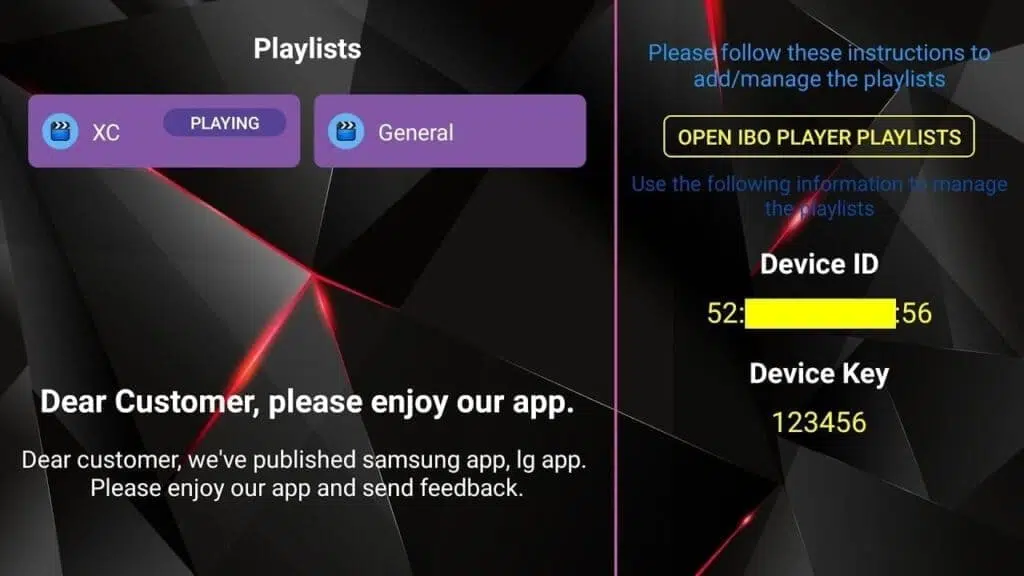
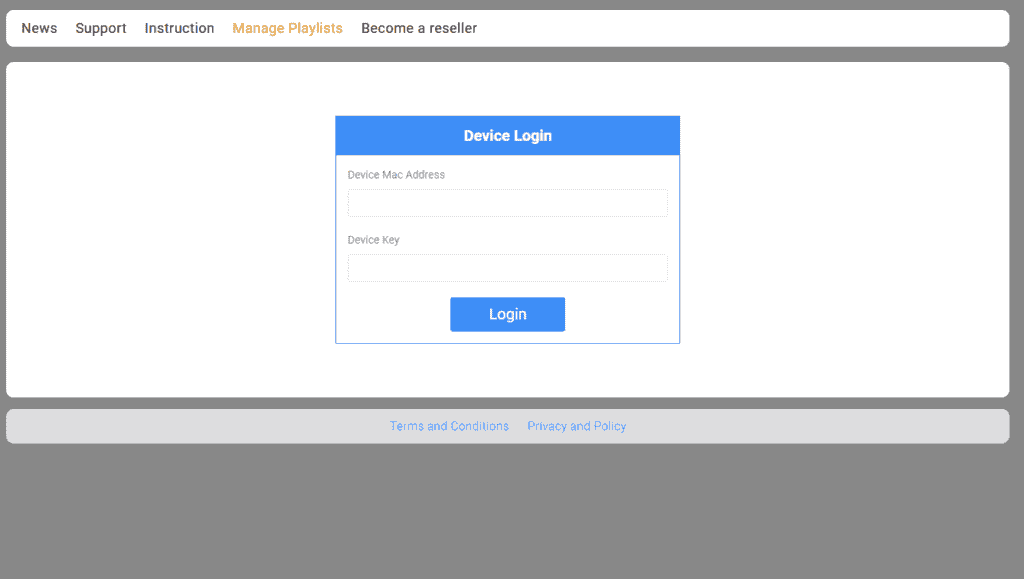
Step 3: Go to https://iboiptv.com/device/login and enter your Device ID and Device Key, then click “Login.”
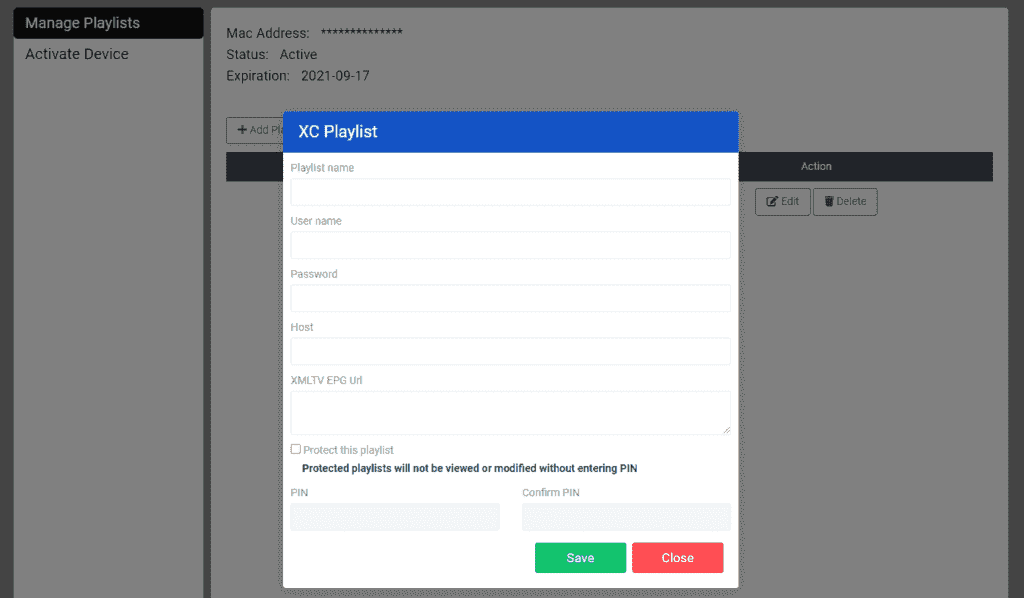
Step 4: Click the “Add XC Playlist” button and fill in your Xtream connection details (check your WhatsApp conversation for this information).
Enter the username, password, and host URL (server address), then click “Save.”
Step 5: Return to the IBO Player app and choose “Refresh” to reload your playlists. Your playlist name should now appear, and you’re ready to start enjoying your IPTV subscription!
Set up TiviMate on a compatible Fire TV
These steps are for Fire TV devices that support installing Android APK apps. Keep the playlist link from your IPTV USA Pro subscription ready.
- Find and install Downloader in the Amazon Appstore on your Fire TV. You can check the app on the Downloader developer’s website.
- Open Settings, then My Fire TV (or Device & Software on a Fire TV television), then Developer Options. Allow Downloader to install apps. If Developer Options is hidden, open About and repeatedly select the device name until the developer message appears, then go back. The Downloader developer’s instructions show these device-specific steps.
- Open Downloader and enter https://tivimate.com/apk. This is the download address published on the official TiviMate website. Follow the installation prompt and open TiviMate.
- Open TiviMate’s playlist setup and choose the format supplied with your subscription: M3U for one complete playlist link, or Xtream Codes for a server address, username and password. The maker’s app listing confirms support for both formats.
- For M3U, paste the entire playlist link into the playlist-address field, including any text after a question mark. For Xtream Codes, enter the supplied server address in the server-address field, your subscription username in the username field and your subscription password in the password field. Preserve http or https and any port in the address; do not use your TiviMate account password.
- Continue with the on-screen setup, save the playlist and wait for it to load. If asked for a playlist name, choose a name you will recognise. If your subscription includes a separate TV-guide link, add it through the player’s programme-guide settings. Open a channel to check playback. Player activation or Premium features are separate from your IPTV subscription.
If your Fire TV does not offer APK installation, send your Fire TV model to IPTV USA Pro on WhatsApp for the matching setup instructions.
1st Application: Smarters Player Lite
How to Set Up IPTV on Apple / iOS Devices Using Smarters Player Lite
Step 1: Start by downloading the Smarters Player Lite app from the Apple App Store using this link:
👉 https://apps.apple.com/in/app/smarters-player-lite/id1628995509
Or you can search for “Smarters Player Lite” directly in the App Store.
Install the IPTV application on your iPhone, iPad, or other iOS device.
Step 2: Open the Smarters Player Lite app once it is downloaded, and enter your IPTV login details.
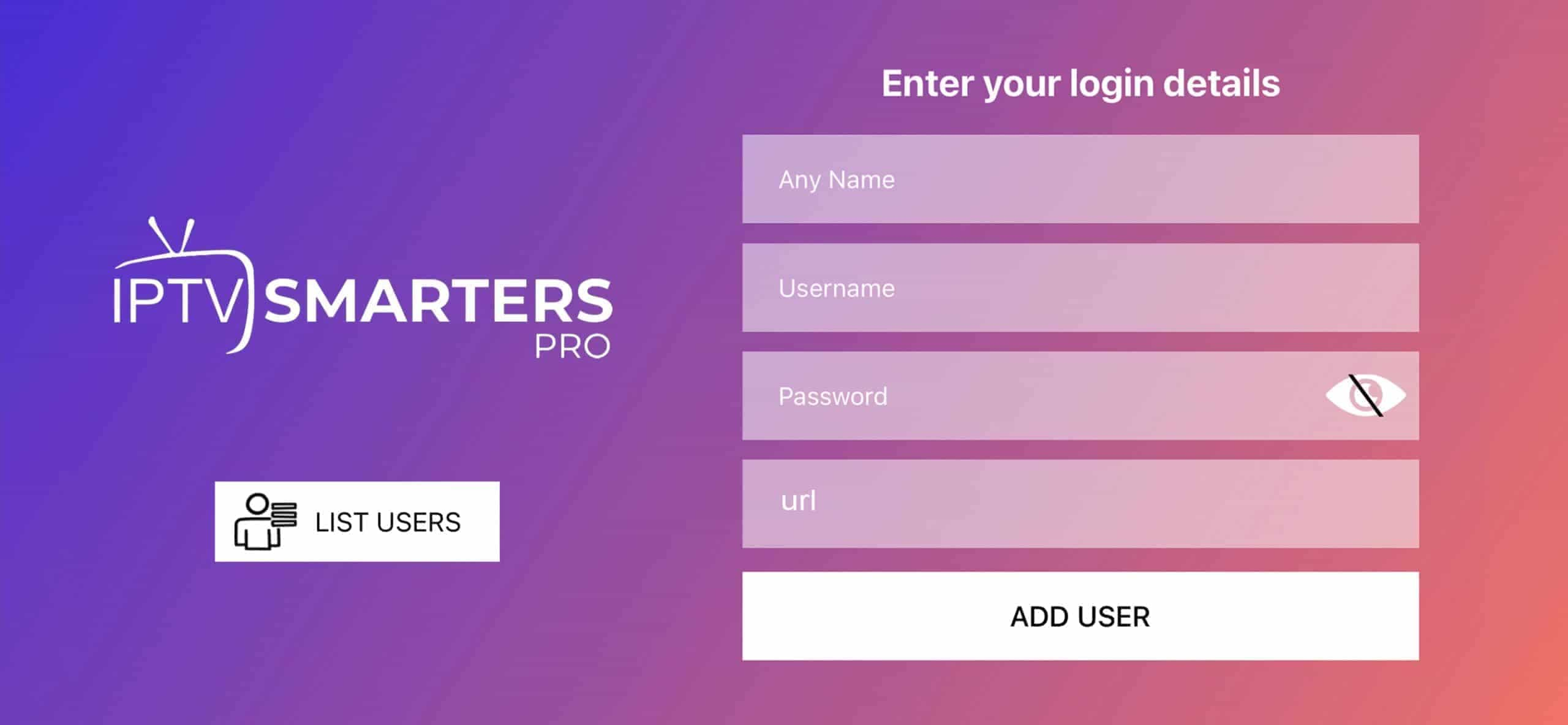
Step 3: Enter the authentication details provided by us after subscribing to your IPTV service.
Now click on “Add User” to proceed to the next section.
Step 4: Wait a few seconds while the app authenticates your IPTV account.
Step 5: Click on the “Live TV” icon as indicated by the red arrow in the image (inside the app dashboard).
Step 6: You must now select the channel group you wish to watch, and proceed to the next screen.
Step 7: Now, click on the channel name and then double-click on the small screen to switch it to full-screen mode — this is the final step to start enjoying live TV streaming.
Step 8: To add the EPG (Electronic Program Guide), you don’t need to add an EPG URL manually; simply click on “Install EPG” within the app.
✅ Done! Your IPTV Smarters Player Lite is now fully configured on your iOS device.
2nd Application: GSE Smart IPTV
How to Set Up IPTV on iPhone, iPad, tvOS, and Mac OS Using GSE Smart IPTV
The GSE Smart IPTV app is available for iPhone, iPad, Apple TV (tvOS), and Mac OS X.
You can download it directly from the App Store:
👉 apps.apple.com
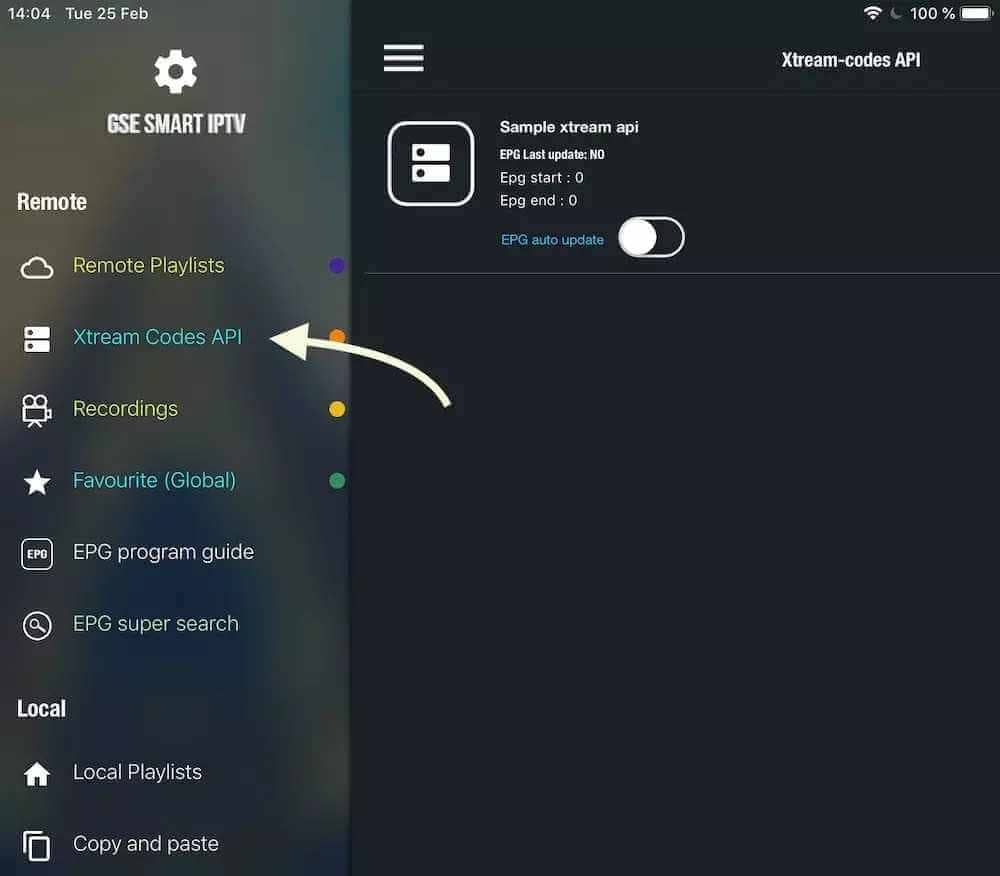
Step 1: Navigate to the section labeled Xtream Codes API inside the GSE Smart IPTV app.
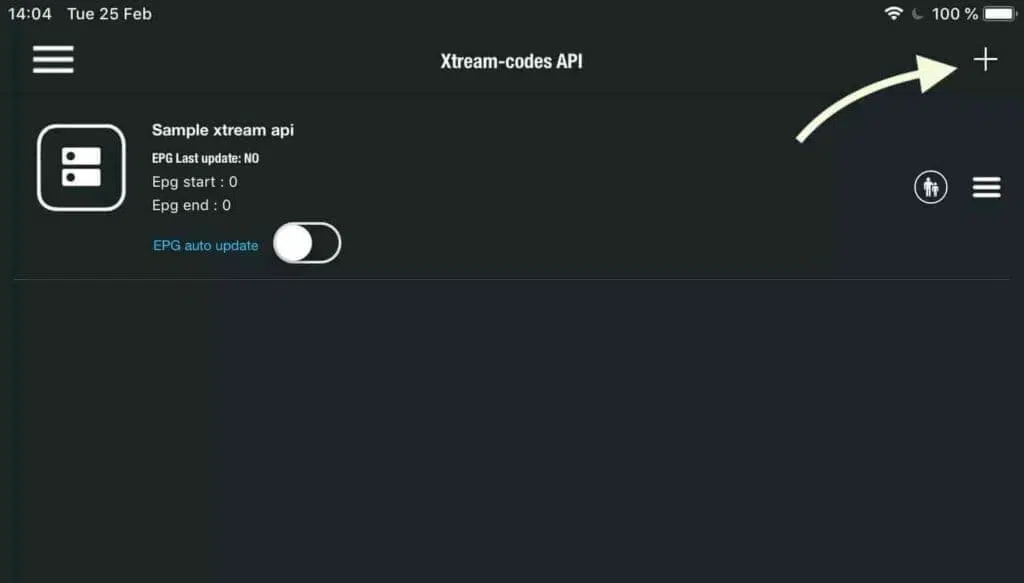
Step 2: Tap on the “+” icon to add a new Xtream Codes API list.
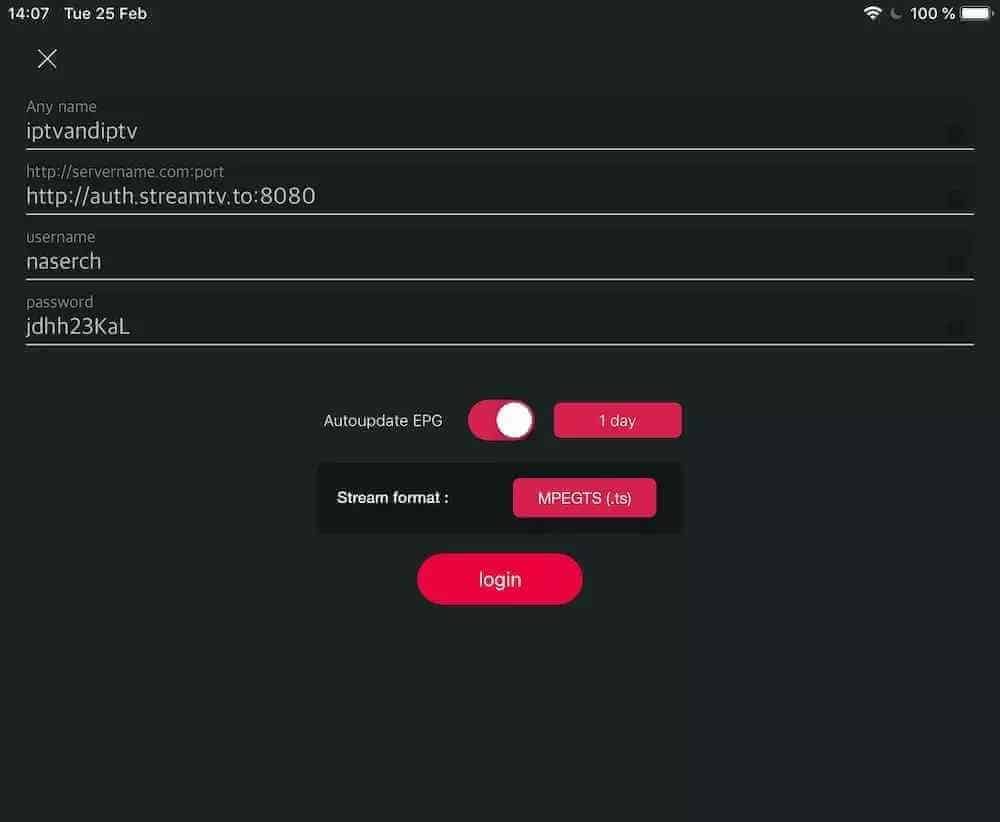
Step 3: Enter your Xtream Codes details:
In the first field, choose a name for your list (this can be any name you like).
Enter the Username, Password, and Portal URL provided by your IPTV service.
Enable Auto-update EPG if available, then click on LOGIN to authenticate.
Step 4: Enter the newly created list to browse and watch movies and live TV channels directly inside the GSE Smart IPTV app.
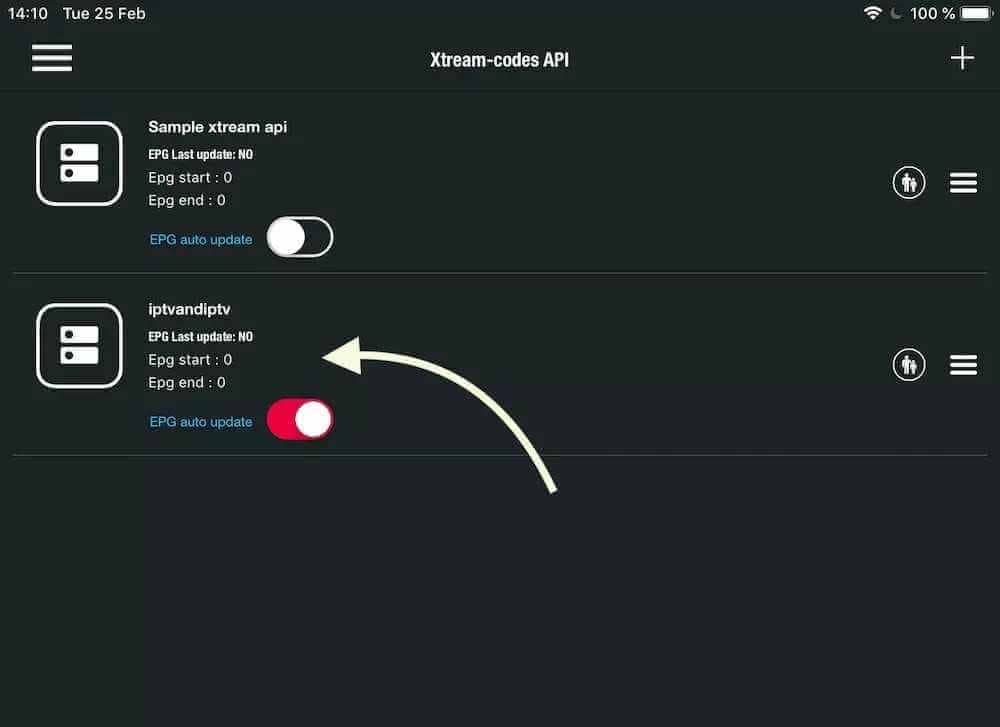
✅ Done! You can now enjoy your IPTV service on any Apple device using GSE Smart IPTV using this iptv installation guide!
How to Install IPTV on Android Devices
Our IPTV service is compatible with any IPTV application, and the following are the recommended apps.
IPTV Smarters PRO Application
Step 1: Open the Google Play Store on your Android device.
Step 2: Search for “IPTV Smarters PRO” or “Smarters Player Lite” in the search bar and install the app.
(These are some of the best IPTV applications for Android.)
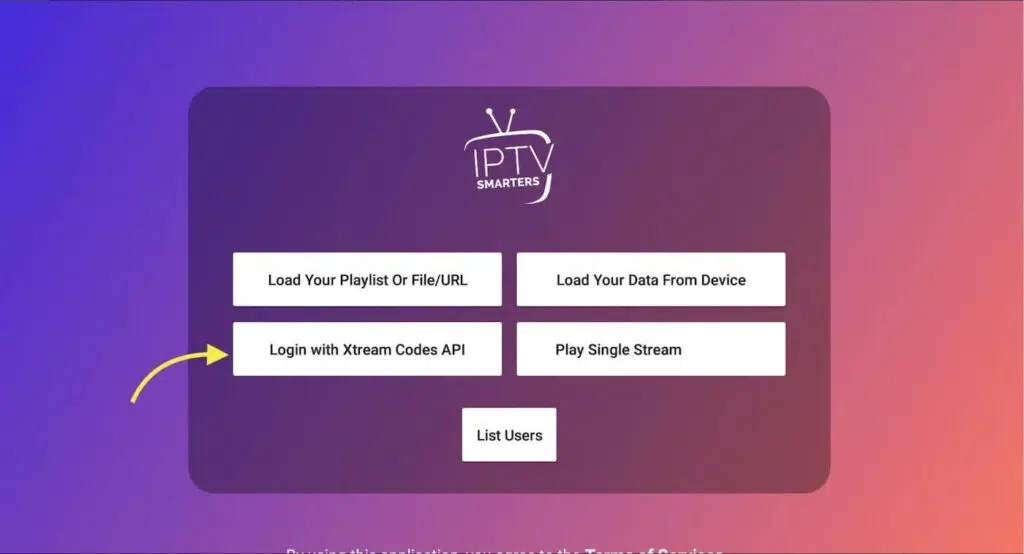
Step 3: Open IPTV Smarters PRO and click on “Login with Xtream Codes API”.
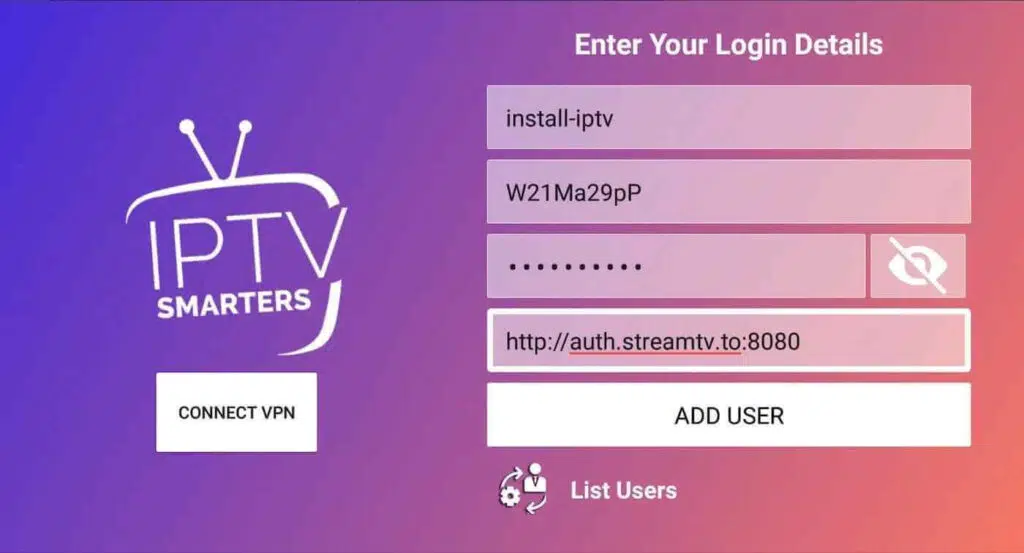
Step 4: Enter your Xtream Codes connection details:
In the first field, choose a name for your list (it can be any custom name).
Then, enter the Username, Password, and Portal URL provided by us.
Click on “Add User” to save and proceed.
Step 5: The app will start downloading Live TV channels and Video on Demand (VOD) content.
This process takes about 10 seconds, after which you will be connected and see the main IPTV dashboard.
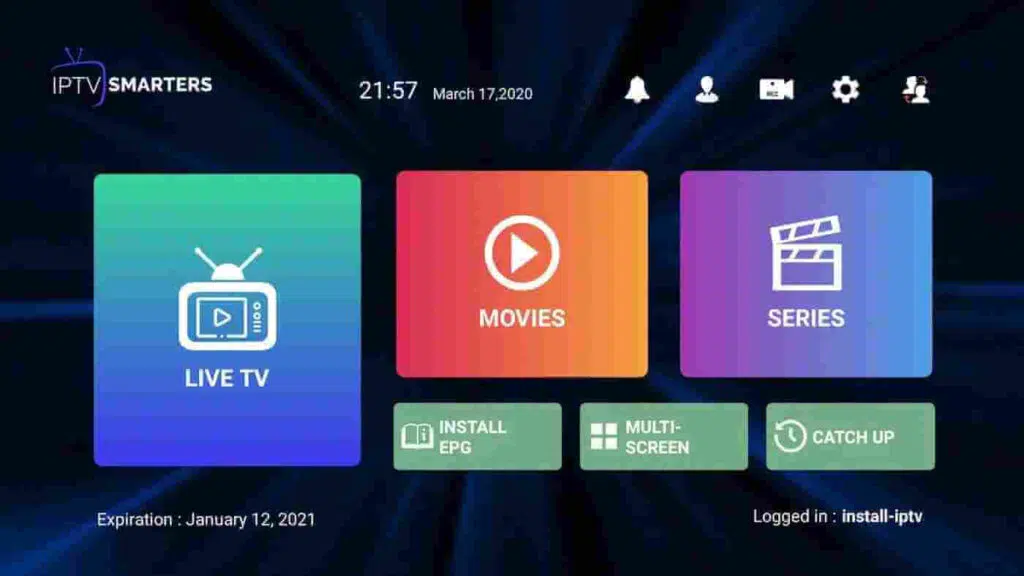
✅ You are now ready to enjoy your IPTV service on your Android device using IPTV Smarters PRO or Smarters Player Lite!
IPTV Setup Tutorial for MAG Devices
This iptv installation guide will help you through the simple and effective steps to install and configure your MAG box (250/254/256 and others) for IPTV streaming.
Step 1:
When the MAG box is loading, the main portal screen appears.
Click on “Settings”, and press the “SETUP/SET” button on your remote control.
(MAG IPTV configuration starts from the main portal settings.)
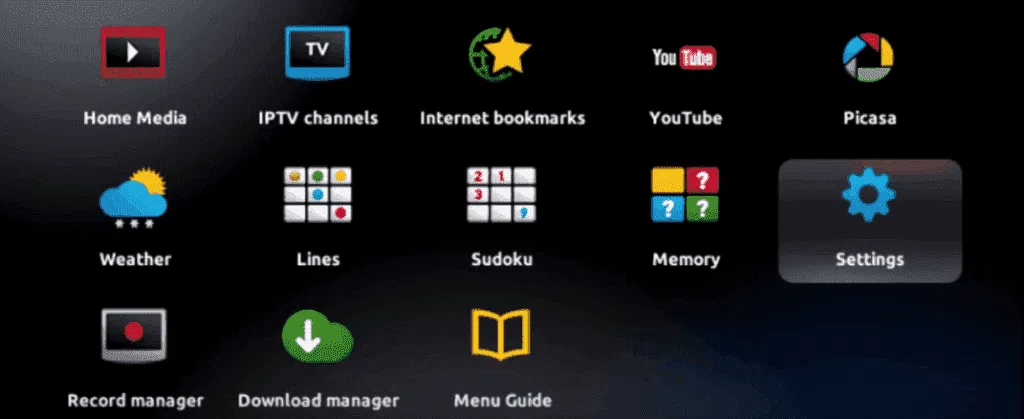
Step 2:
Next, press “System Settings” and click on “Servers”.
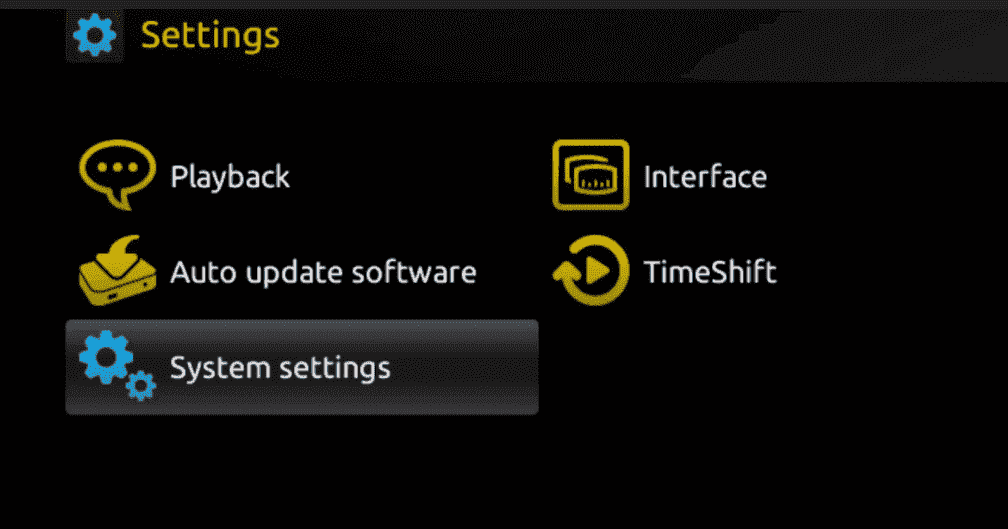
Step 3:
Click again on “Servers” to proceed.
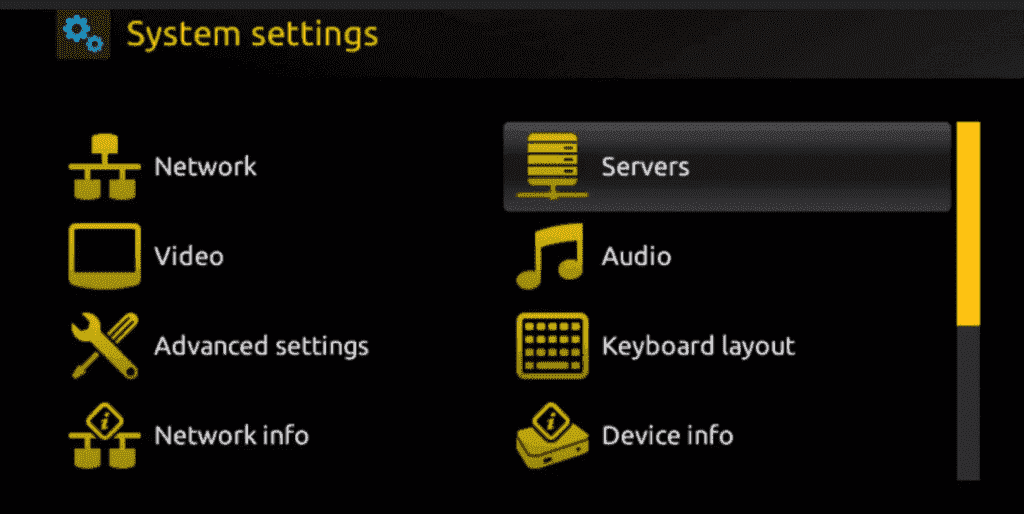
Step 4:
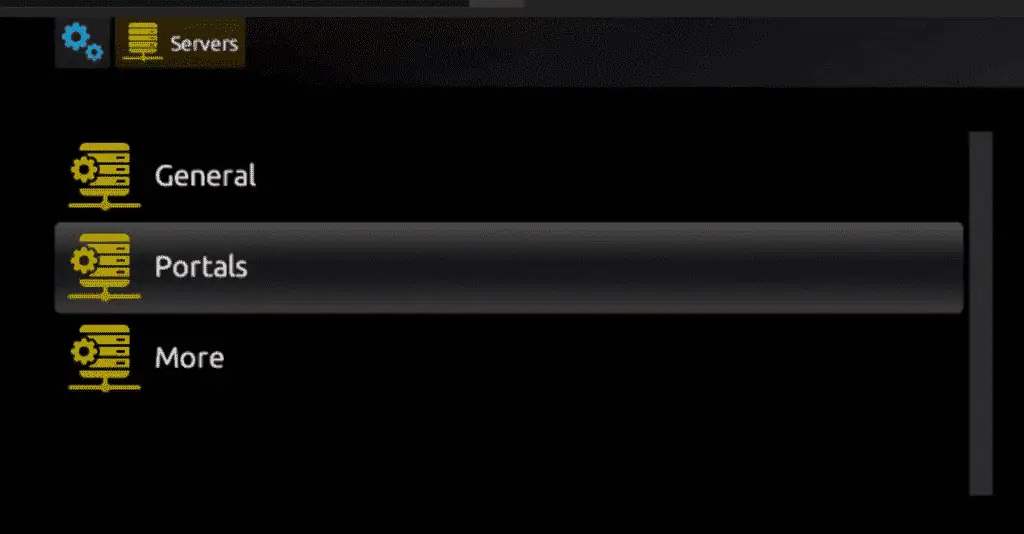
Choose and click on the “Portals” option.
Step 5:
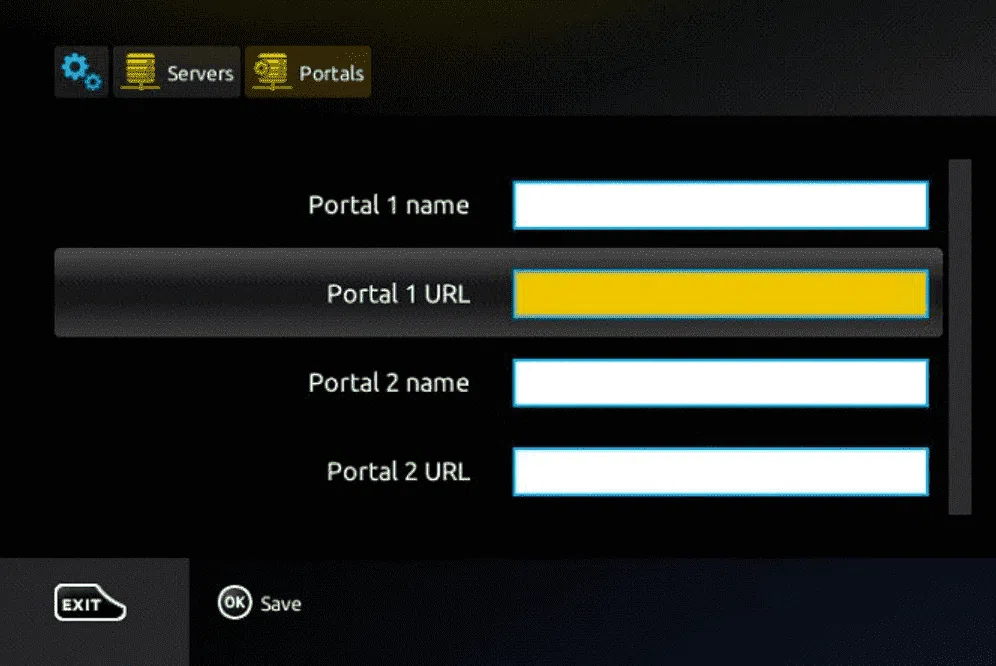
In the field “Portal 1 Name”, enter a custom name for the portal (e.g., “My IPTV”).
In the field “Portal 1 URL”, enter the Portal URL provided by us.
🛠️ Important:
To activate your IPTV subscription on your MAG box, you must send us your MAC address (found on the sticker at the back of your device) when you place your order.
The activation is done remotely.
After activation, we will send you the Portal URL link that you need to insert as shown in the screenshot below.
Step 6:
Once everything is entered correctly, select and click “OK” to save your changes.
Step 7:
Click “EXIT” on your remote control after saving the settings.
Step 8:
Finally, you must restart the MAG box.
Choose “OK” when prompted so that all the changes are applied.
✅ Your MAG device is now ready to stream Live TV, Movies, and Series via your IPTV subscription!
1st Application: IPTV Smarters Pro
How to Install IPTV Smarters Pro on Windows?
Step 1:
Go to your preferred search engine and type “IPTV Smarters Pro”.
Step 2:
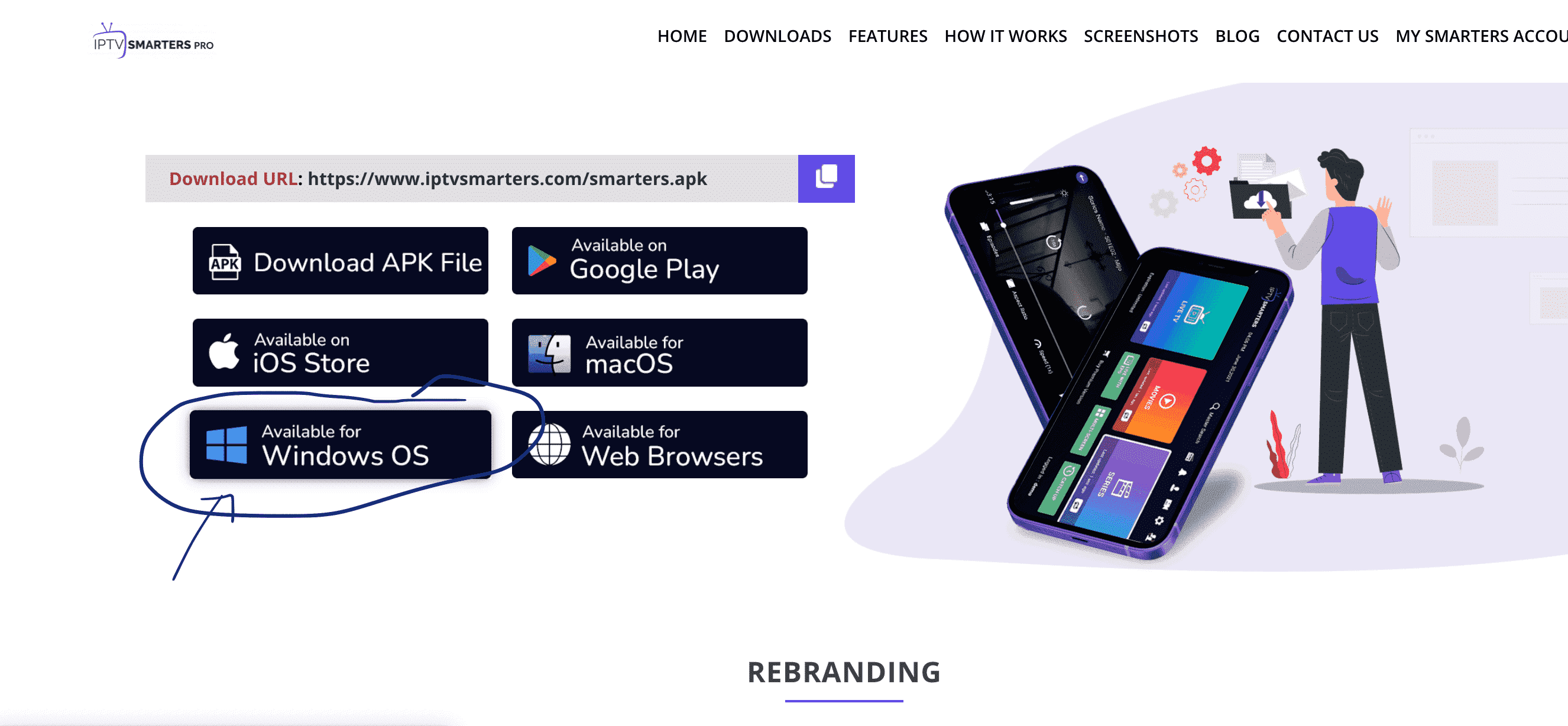
Then open the official website: https://www.iptvsmarters.com
Step 3:
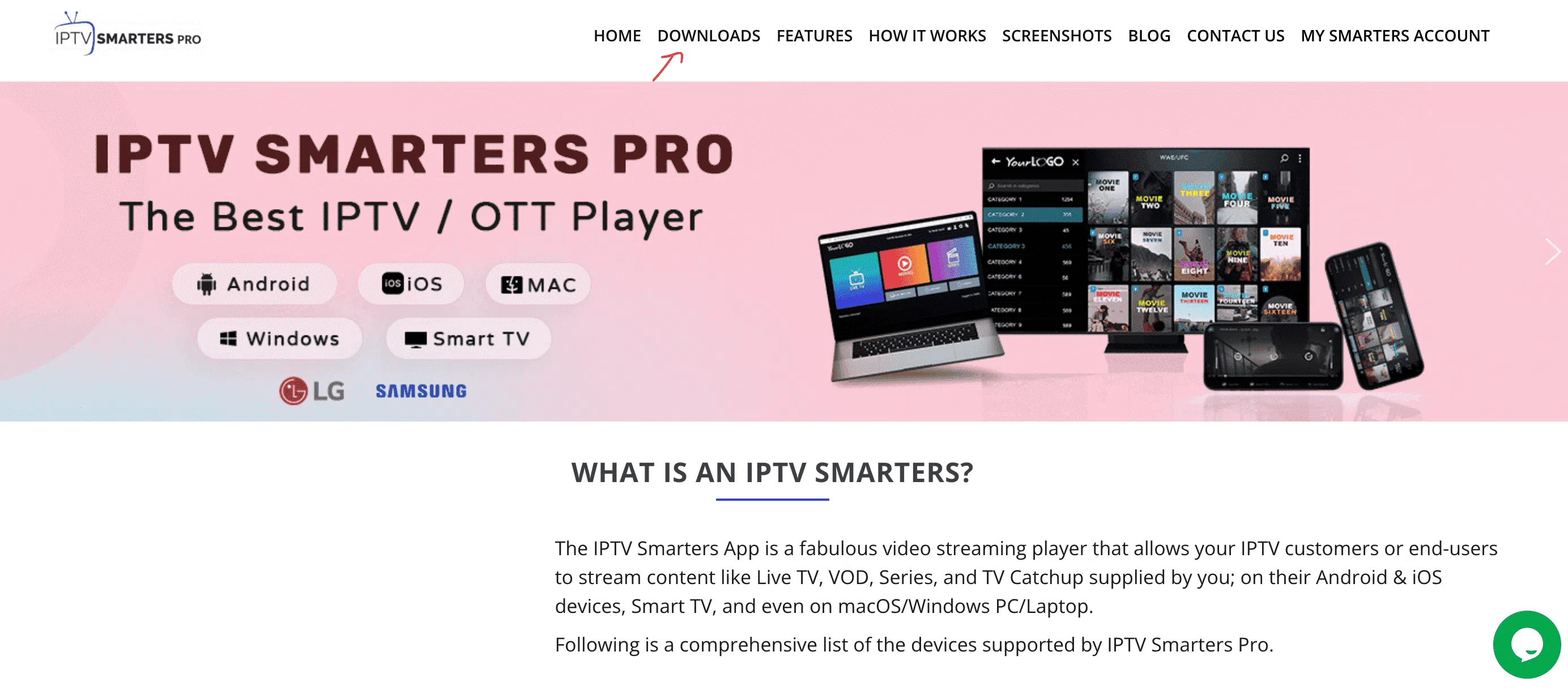
Select Downloads from the menu.
Step 4:
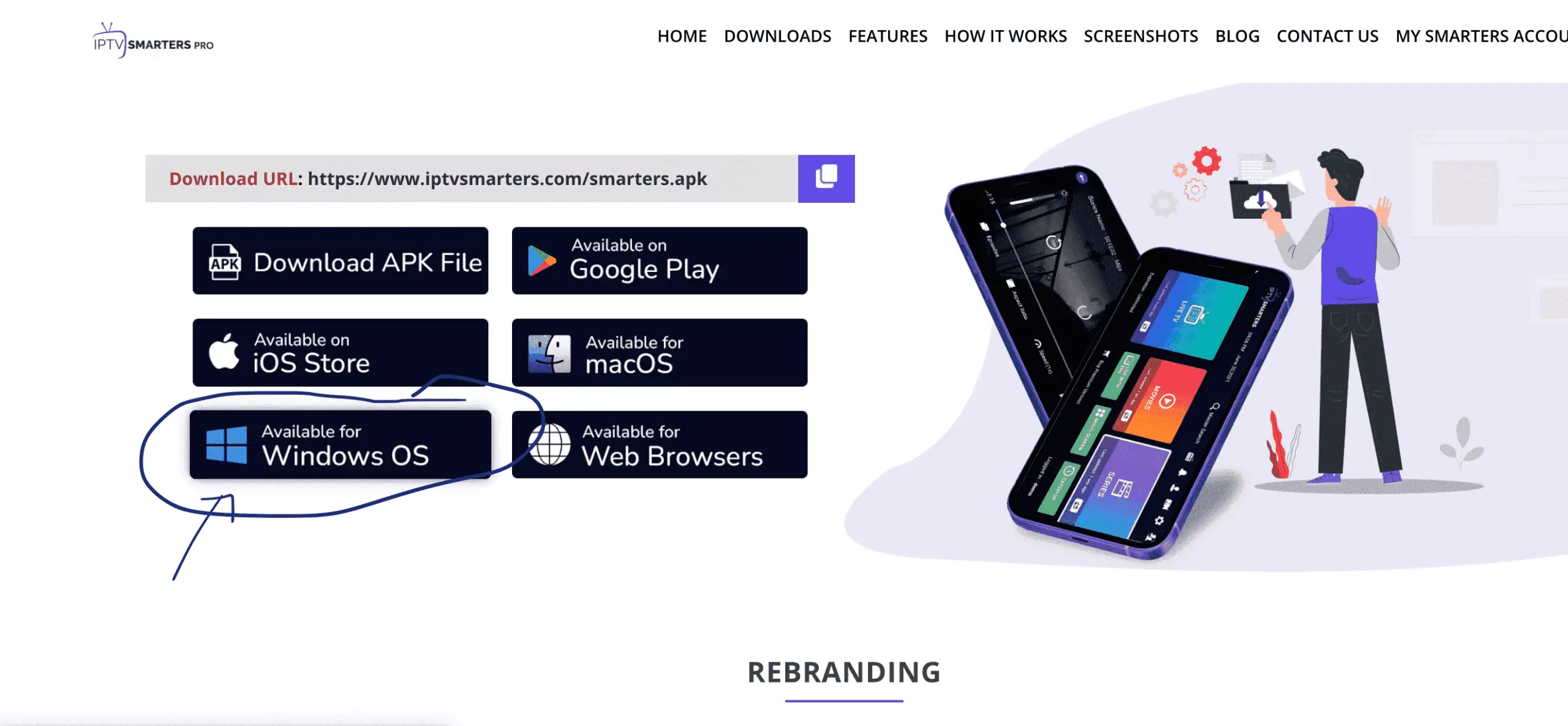
Download the latest version of IPTV Smarters Pro for Windows.
Step 5:
Once the file download is complete, click on the executable file (.exe).
Step 6:
Windows will ask for permission to open this file. Select “Yes”.
Step 7:
The file will now begin the installation process, which should take between one and two minutes.
Step 8:
After the installation is complete, launch the IPTV Smarters Pro application.
Click on “Add New User”, select “Login with Xtream Codes API”, and enter your login details (Username, Password, and Portal URL) provided by your IPTV service.
Step 9:
You are now ready to start watching IPTV content on IPTV Smarters Pro!
2nd Application: MyIPTV Player
MyIPTV Player is an excellent media player with EPG support, allowing you to stream your IPTV channels on your Windows Phone, Windows 10, and Xbox One.
You can easily load your M3U playlist from local storage or a remote URL and start watching.
✅ You can download this app from the link below:
https://www.microsoft.com/
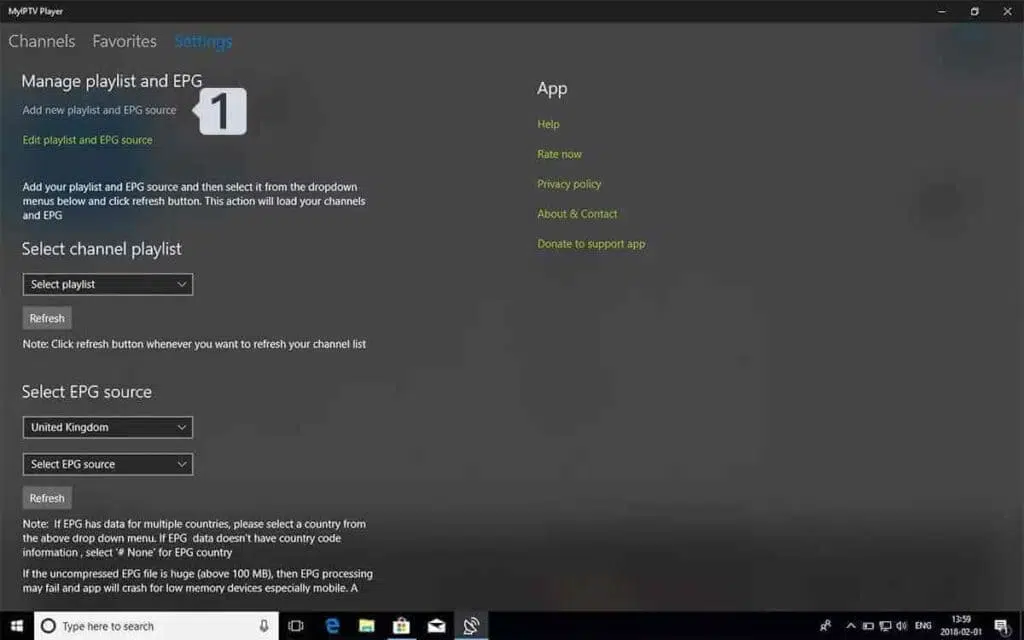
Step 1:
Navigate to Settings.
Go to the “Settings” tab and open “Add new playlist and EPG source”.
Step 2:
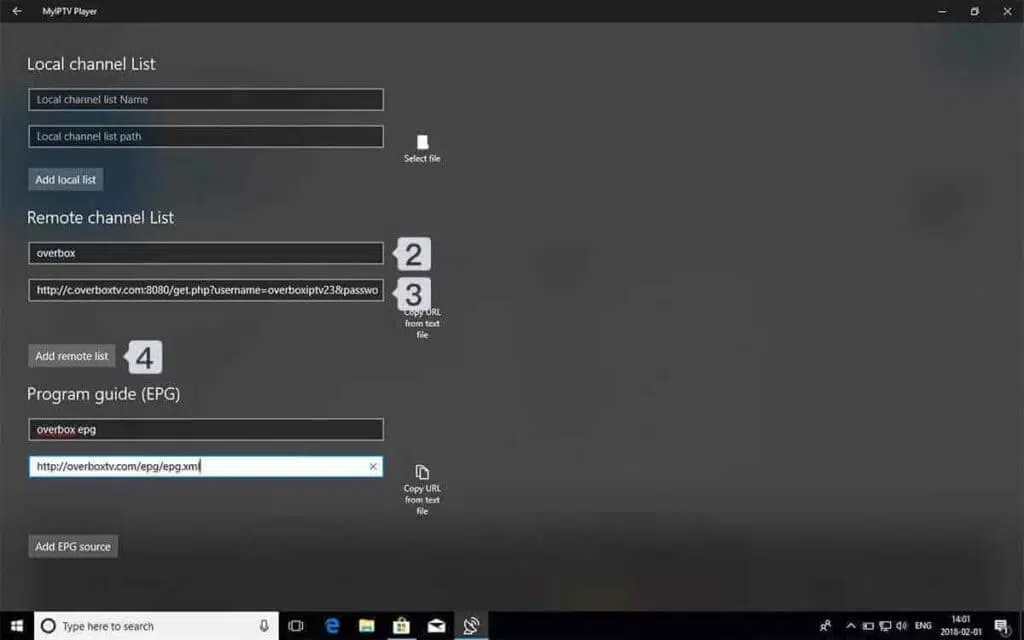
Enter the M3U link.
Type a name (e.g., “overbox”) in the field “Remote channel list name”.
Paste the M3U link provided by your IPTV provider into the field “Enter remote source URL”.
Press Add remote list.
Step 3:
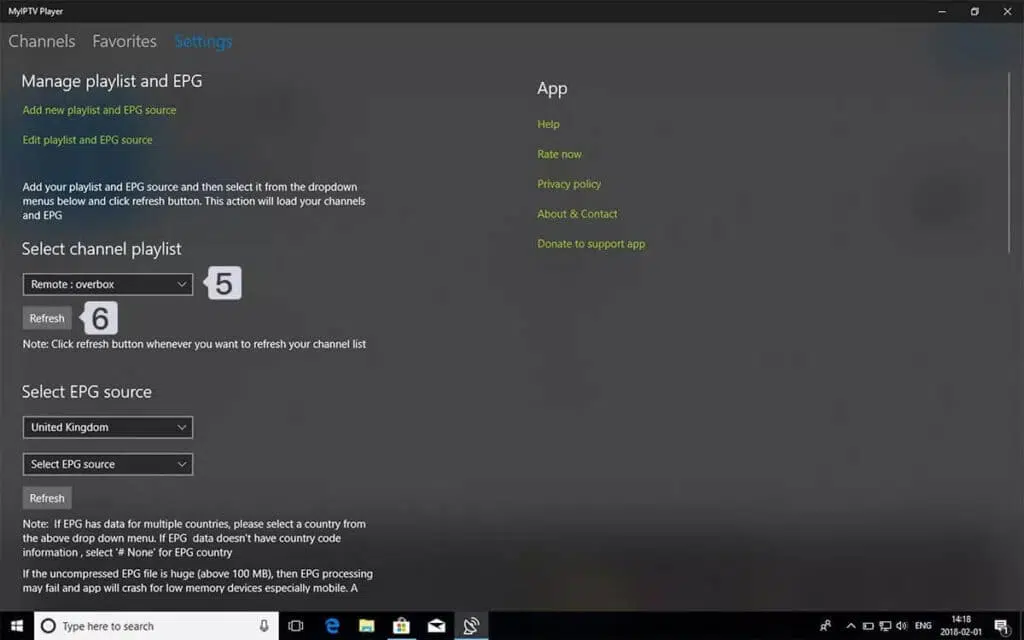
Select the playlist to load.
Return to Settings and select your playlist (e.g., “overbox”) from the channel list selection.
Step 4:
Watch channels and Video on Demand.
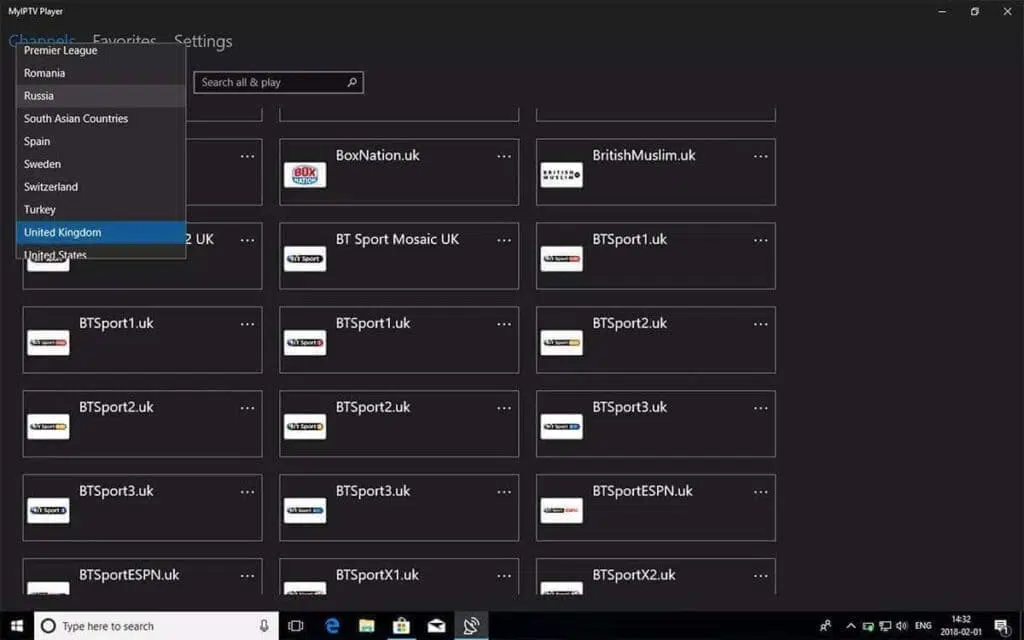
Now go back to the “Channels” tab and select the country or group you want to watch TV channels from.